

If you are reading this, you are likely trying to streamline your customer communication. Whether you are a small business owner looking for a quick whatsapp login to answer messages from your laptop, or an enterprise operations manager realizing that a single smartphone can no longer handle your customer support volume, accessing WhatsApp efficiently is critical.
The way we access WhatsApp has evolved dramatically. What started as a simple mobile application now spans across desktop interfaces, browser-based sessions, and enterprise-grade API connections. But as your business grows, the standard whatsapp web login process—scanning a single QR code and sharing a physical device—creates severe bottlenecks, security risks, and missed sales opportunities.
In this comprehensive guide, you will learn everything about managing your WhatsApp access. We will cover the basics of logging in online, troubleshooting common connection issues, and, most importantly, how transitioning to the WhatsApp Business API with an Official Meta Business Partner can unlock unlimited, multi-agent access for your entire team.
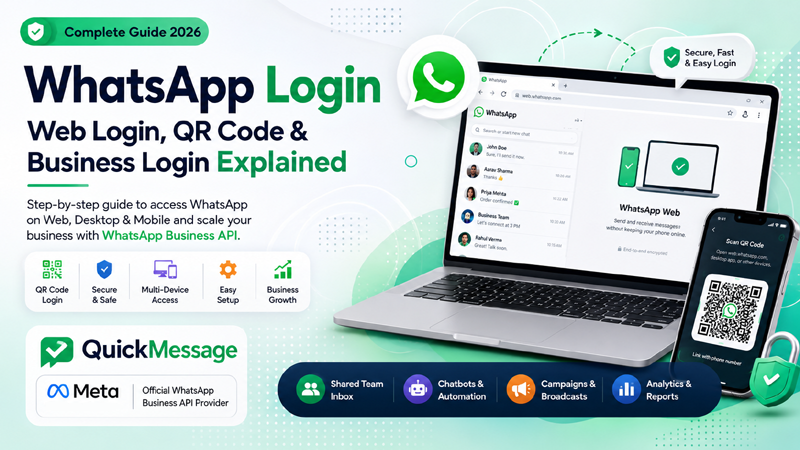
1. Understanding the Different Types of WhatsApp Logins
Before diving into troubleshooting or enterprise solutions, it is crucial to understand the distinct ecosystems Meta has built around WhatsApp. Your login method depends entirely on which version of the platform you are using.
The Consumer App (WhatsApp Messenger)
Designed for personal use, this version requires a mobile device with an active SIM card. The primary login is tied directly to the phone number on that specific mobile device. Secondary access is achieved via WhatsApp Web or the desktop app.
The Small Business App (WhatsApp Business App)
Built for solopreneurs and micro-businesses, the WhatsApp Business login mirrors the consumer app but adds basic business tools (catalogs, simple auto-replies). It allows a slightly expanded multi-device setup (up to 4 linked devices), but remains fundamentally tied to a single primary smartphone.
The Enterprise Solution (WhatsApp Business API)
Also known as the WhatsApp Business Platform, this version has no standard front-end app. You do not log into it using a mobile app or a standard web QR code. Instead, you access it through an Official WhatsApp API Provider or a Meta Business Partner like QuickMessage. This allows infinite scale, seamless WhatsApp CRM Integration, and simultaneous access for hundreds of agents.
2. Step-by-Step Guide: How to Log In Across Platforms
Depending on your current setup, here is exactly how to execute a successful login.
1 Method 1: The Standard WhatsApp Web Login
For quick, browser-based access from your computer:
- Open your browser: Navigate to
web.whatsapp.com. You will see a dynamically generated WhatsApp QR Code. - Open WhatsApp on your phone: Go to Settings (iOS) or the three-dot menu (Android).
- Select Linked Devices: Tap on "Link a Device."
- Authenticate: Use FaceID, TouchID, or your device PIN to unlock the scanner.
- Scan the QR Code: Point your phone’s camera at your computer screen. Your whatsapp login online is now complete.
2 Method 2: Logging into the WhatsApp Business App
For new business users setting up a dedicated number:
- Download the App: Install the WhatsApp Business App from the Google or Apple store.
- Verify Your Number: Enter your dedicated business phone number.
- Enter the OTP: Input the 6-digit one-time password sent to your device.
- Set Up Your Profile: Enter your business name, category, and catalog details.
- Link Desktop Devices: Use the "Linked Devices" QR code method to connect up to four computers.
3 Method 3: Enterprise Login via WhatsApp Business API
If you are upgrading to an enterprise setup, you bypass the mobile app entirely:
- Choose a Partner: Sign up with an Official Meta Business Partner like QuickMessage.
- Access the Dashboard: Log into your QuickMessage web portal using your email and password.
- Verify Meta Business Manager: Link your verified Facebook Business Manager.
- Register Your API Number: Input a clean phone number and verify it via OTP.
- Invite Your Team: Invite support agents via email to access your Shared Team Inbox.
3. The Limitations of Traditional WhatsApp Business Logins
Many growing businesses attempt to run a 10- or 20-person support team using a standard WhatsApp Web login. This inevitably leads to operational chaos.
- The "Device Limit Reached" Error: The standard app only allows one primary phone and up to four linked companion devices. If a fifth team member tries to log in, someone else gets abruptly logged out.
- Constant Disconnections: If the primary phone is turned off or loses internet, linked web sessions can become unstable.
- No Accountability: Because everyone logs in under a single identity, it is impossible to track which agent sent a specific message.
- Zero Automation: Standard logins do not support intelligent WhatsApp Chatbots or advanced routing.
4. Benefits of Upgrading to the WhatsApp Business API
When you embrace a true WhatsApp Automation Platform, your operations transform.
True Multi-Agent Access
Eliminate the 4-device limit. 50 or 1,000 agents can log in from their own browsers using their own credentials simultaneously.
Enhanced Security
Stop sharing QR codes over Slack. Agents use secure email/password logins with role-based permissions.
Advanced Analytics
Track individual agent performance, average resolution times, and customer satisfaction metrics.
Always-On Reliability
The API is cloud-hosted. There is no physical phone that needs to stay charged or connected to the internet.
5. Comparison: Which WhatsApp Access is Right for You?
| Feature | Standard Web Login | WhatsApp Business App | API (via QuickMessage) |
|---|---|---|---|
| Best For | Personal use | Micro-businesses (1-3 staff) | SMEs and Enterprises |
| Login Method | Mobile + Web QR Code | Mobile + Web QR Code | SaaS Login (Email/Password) |
| Simultaneous Users | 1 Phone + 4 Linked Devices | 1 Phone + 4 Linked Devices | Unlimited Users |
| Agent ID Tracking | No | No | Yes |
6. Common Mistakes to Avoid with Shared Logins
- Screenshotting QR Codes: Trying to take a picture of the WhatsApp QR code to send to a remote employee fails because the code refreshes every few seconds for security.
- Using Personal Numbers: If an employee uses their personal WhatsApp for business and leaves the company, you lose all that customer data.
- Ignoring the API for Bulk Messaging: Attempting to send bulk promotional messages via a standard business login will get your number blocked for spam.
7. Troubleshooting Your WhatsApp Login Online
Issue: "WhatsApp Web is not loading"
Solution: Clear your browser cache and cookies. Ensure you are not running aggressive ad-blockers or VPNs that might block Meta's domains. Refresh the page to generate a new QR code.
Issue: "QR Code not scanning"
Solution: Wipe your phone’s camera lens. Ensure your computer screen brightness is turned up. If your screen is highly reflective, adjust the angle of your phone.
Issue: "You have been logged out"
Solution: This happens if you exceed the 4-device limit. Another team member may have linked a new device, bumping you off. It also occurs if the primary phone is inactive for over 14 days.
8. Best Practices for Enterprise Access Management
- Implement Two-Step Verification: Always enable a 6-digit PIN to prevent unauthorized registration of your phone number.
- Use Role-Based Access Control (RBAC): Ensure junior agents only have "Reply" access, while managers have "Admin" access to view analytics and billing.
- Automate the Triage Process: Set up intelligent automation to route conversations to the correct logged-in department automatically.
9. Scaling Your Team's Access with QuickMessage
If your team is constantly fighting over who gets to scan the WhatsApp Web QR code, it is time to upgrade. As an Official Meta Business Partner, QuickMessage eliminates the friction of traditional WhatsApp access.
- Shared Team Inbox
- Official WhatsApp Business API
- Deep CRM Integrations
- No-Code Chatbot Workflows
10. Frequently Asked Questions (FAQs)
How do I login to WhatsApp Web?
Navigate to web.whatsapp.com on your computer browser. Open WhatsApp on your phone, go to Settings > Linked Devices, and use your phone's camera to scan the QR code.
Can my whole team share one WhatsApp login?
On the standard app, sharing is limited to 4 linked devices. To grant access to your whole team (e.g., 10+ agents), you need a Shared Team Inbox powered by the WhatsApp Business API.
How does API login differ from Web login?
A web login requires scanning a QR code with a physical phone. An API login uses an enterprise software dashboard via standard email/password, independent of a physical smartphone.
Is a WhatsApp login online secure?
Yes, web sessions have end-to-end encryption. However, for maximum business security, using a managed API platform with distinct user logins and role-based permissions is recommended.
Can I integrate my WhatsApp login with my CRM?
Not natively with the standard app. To sync chats and lead data with a CRM, you need the API through a provider like QuickMessage, which can connect your CRM through a custom integration.
11. Conclusion
Securing a reliable whatsapp login is the foundation of your customer communication strategy. While scanning a WhatsApp Web QR code is perfectly fine for personal use or a solo entrepreneur, it quickly becomes a bottleneck for any growing company.
Struggling with device limits, dropped connections, and messy inboxes are clear signals that your business has outgrown the standard app. By transitioning to a robust WhatsApp Business API provider, you secure your company's data, empower your support team with multiple logins, and open the door to massive scalability.


